Keep the little things in your photos
Every photo holds more than one story. Turn the small details into stickers and build a collection of your own.
 Snipjoy
SNIPJOY · A LITTLE JOY, KEPT
Make photo stickers on iPhone and iPad. Cut out subjects, add white borders or textured finishes, and export transparent PNGs. On-device processing, no account needed.
Made for iPhone & iPad · iOS 18.6+

 a little joy,
01 / Features
Keep the little detail that caught your eye. Lift it out, make it yours, and add it to your collection.
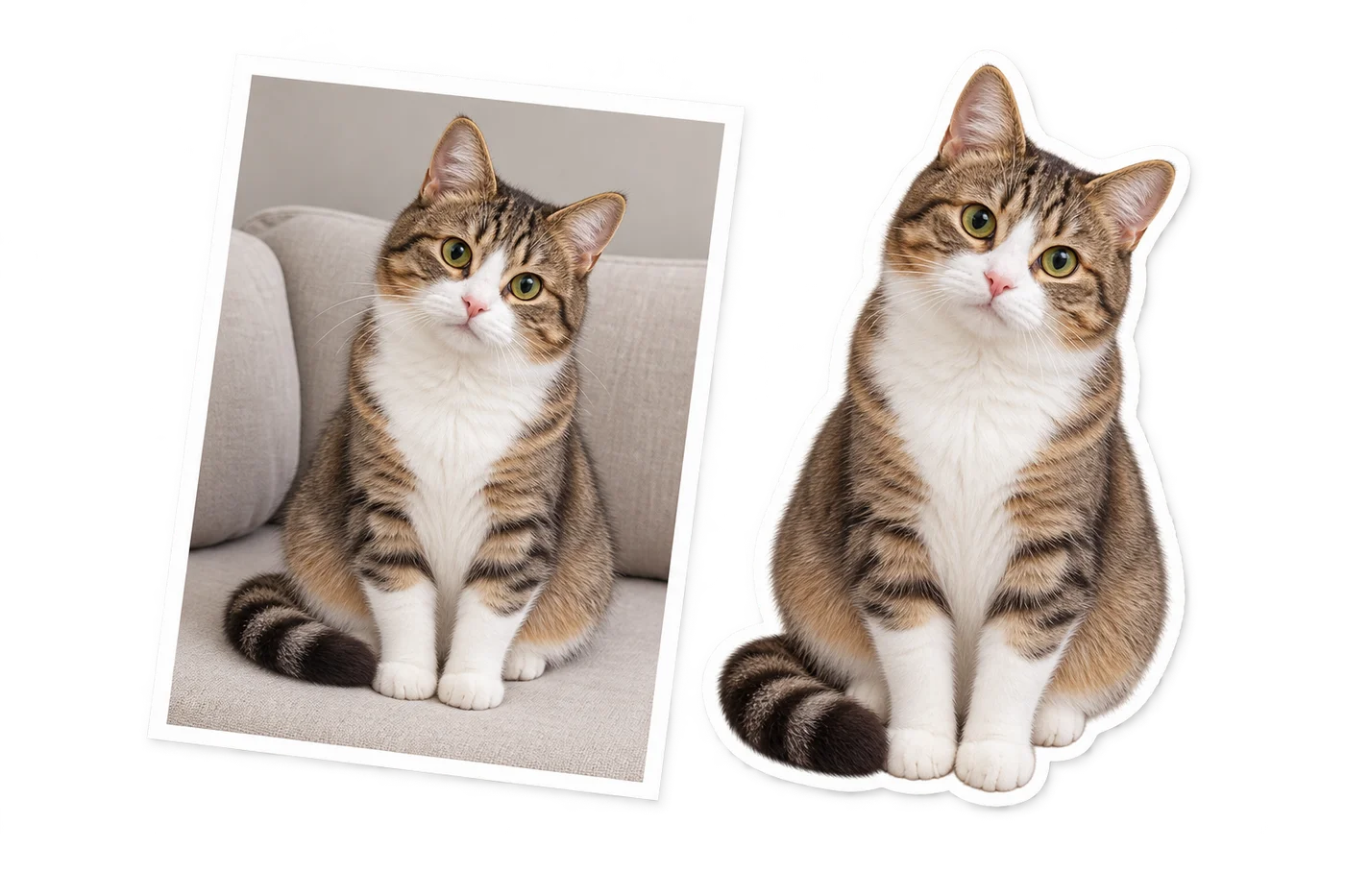
Take a picture or swipe to select several from your library. Detect subjects automatically, then tap or circle the ones to keep.
Choose a classic border, matte paper, glossy film, or holographic foil. Make one sticker or a set from multiple subjects.
Copy, export transparent PNGs, or use the system sticker extension. The receiving app determines how stickers can be used.
02 / DETAILS MAKE THE DIFFERENCE
Try a finish in this illustration. Final stickers are generated in the app.
Classic border
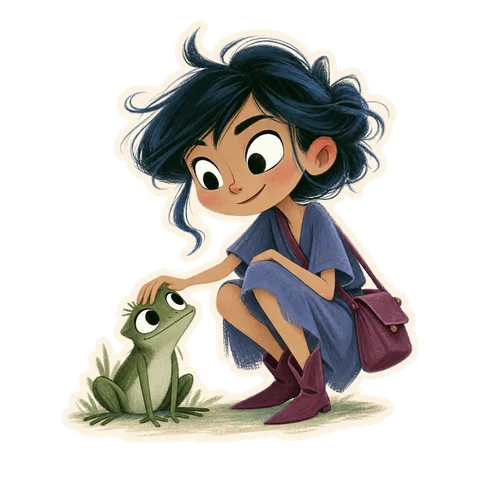
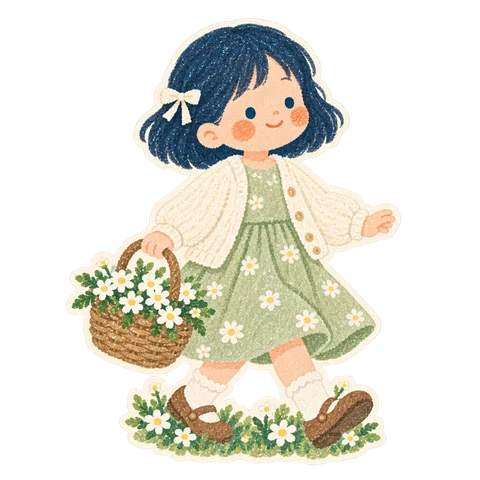
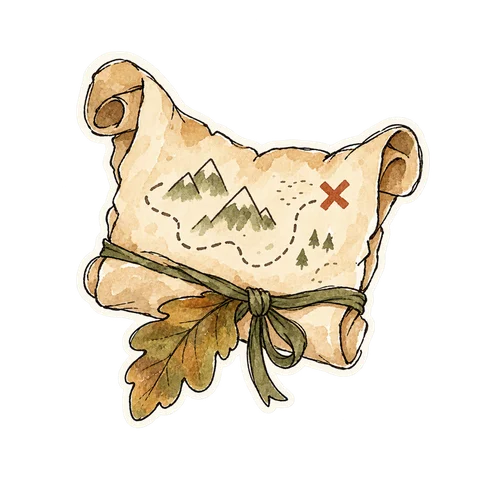
Built-in sticker pack artwork · Collection illustration
03 / Albums
Organize albums, revisit a trip on the map, or turn to a day in the calendar. Photo dates and places help you find your favorites again.
ON YOUR DEVICE. FOR YOURSELF.
Subject extraction and sticker creation happen locally. We do not upload your photos to our servers. Start making without creating an account.
How your data is handled
04 / JOURNAL
Practical guides, product notes, and things worth knowing before you begin.
Every photo holds more than one story. Turn the small details into stickers and build a collection of your own.
Make stickers from photos on iPhone or iPad with Snipjoy. Select subjects, add a white border, and copy or share a transparent PNG, with a real app screenshot.
Photos, location, system models, and sharing: a clear explanation of where your data goes.
Photo processing runs on your device. Some system recognition models may need an initial download. Map backgrounds also use Apple’s network services.
Yes. Swipe to select photos in the system picker. Snipjoy processes them one at a time and keeps completed results. Batch imports use the classic border by default.
Copy or share a transparent PNG, or use a supported system sticker entry point. The receiving app determines transparency, pasting behavior, and supported actions.
Open Snipjoy settings and choose Language to open system settings. Select Chinese, Japanese, or English. If Settings opens at its home screen, go to Apps → Snipjoy → Language.
Start with a photo you love.